Showing posts with label Softwares. Show all posts

Sunday, 20 October 2013

How to Download any Website or a Page for Offline Use ???

How to Download Any Websites for offline Use??


As we have shared before " W3Schools Website Completely for Offline Use " , Many of our readers were asking " How can we download any Website or an individual page to use it for offline use without internet connection... ".. So today i am posting it for our readers who are waiting for to know about it...

Why you need Websites or a Webpage offline Use ??

        According to you, it may be for different reasons that why they or you need Websites to Download for offline use!! According to me , If online users need something for some reasons from Internet, they go straight up to Google and get their required info.. what about offline users?? so when they need info they may go to cyber and may want to download it,so that they can use those downloaded websites or pages at home in offline.. So for that reason i am here today..

Let's look for a Best One !!

       There are many ways, software's or may be some other techniques to Download any Web Page or Site for Offline.. lets go for a best and Easiest method..

HTTrack Website Copier


Yes, HTTrack is a software that i am talking about in this post.. i personally prefer this software as it is easy to handle and use without much complications..

HTTrack is a free and open source Web crawler and offline browser , It allows users to download World Wide Web sites from the Internet to a local computer. By default, Ir arranges the downloaded site by the original site's relative link-structure. The downloaded (or "mirrored") website can be browsed by opening a page of the site in a browser.

Compatibility

          If you are using Latest OS Windows 8 or Windows 8.1 , nothing to worry about.. I have tried it.. HTTrack will also work on these too...

Download 

You can Download it from its official website or its available on most of Sites like Softpedia..

Official Website : HTTrack Website
Download Page : Download HTTrack


Read More »

Thursday, 9 May 2013

GifCam-The Easiest Way to Capture Screen Video In .GIF Format or to Create Animated GIFs..

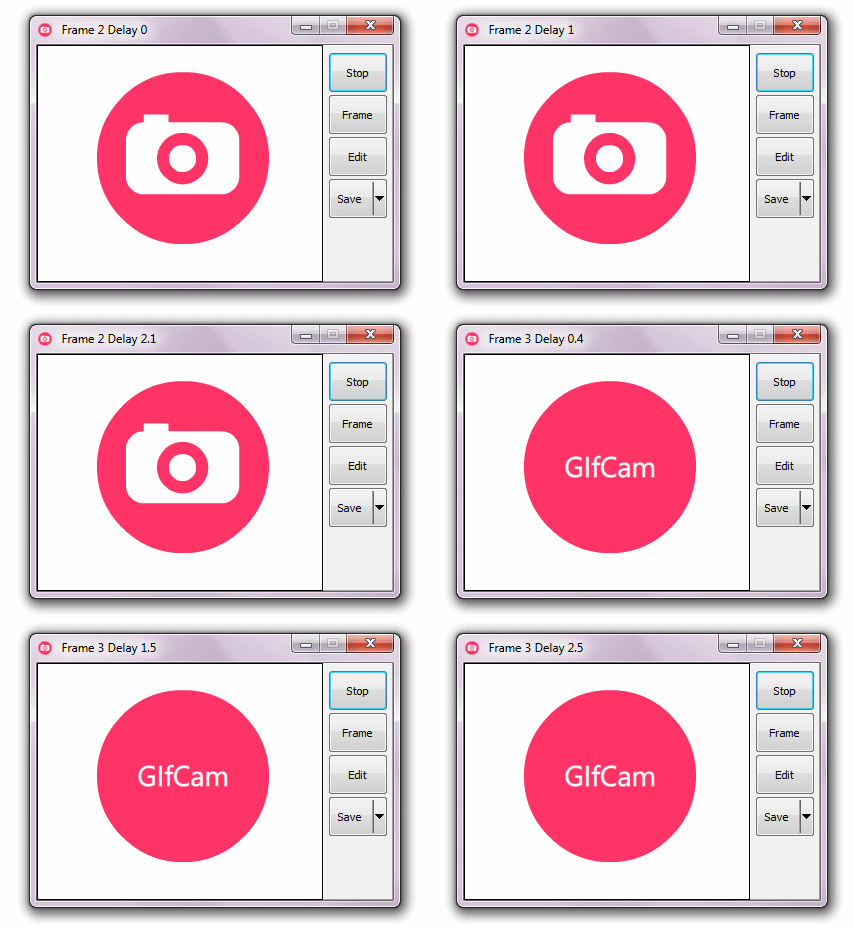
                          GifCam is easy and fun animated gif making app.GifCam has a nice idea where the app works like a camera that stays on top of all windows so you can move it and resize it to record your desired area.
                        Quickly make an animated GIF of anything. GifCam is a free, portable app for Windows that provides you with a simple frame. Re size and position it, then hit record � everything that happens within that frame will be recorded. It�s the easiest way to create your own GIF of just about anything � from desktop demonstrations to clips from any video, online or off. If you love creating GIFs, but wish the process was quicker, you need to check this app out.
                          The animated GIF just might be older than you � it�s been around since 1987, and really took off in the early days of the web. It declined at the end of the 90's, and to some it�s an obsolete way to show animations online � but you wouldn�t know that to look at the web today. Animated GIFs are everywhere. From the endless scrolling of Tumblr to reaction shots on Reddit, GIFs are probably seen by more humans today than any point in their history.

How to Make GIFs in Easy Way..

  • GifCam looks like any other window � except you can see through it. Think of the window as the frame of your virtual video camera � one you can resize and move however you like.

  • You can use this to record just about anything. Your favorite YouTube video. Or To preview the Animated Demo of your Work ..Like below I am Previewing the "Animated Metro UI Drop Down Menu" created by Me..which is my Previous Post of this Blog..

  • Just Download this GifCam Software From Link which is given at the End of this post and Run the App...
  • Then Adjust the Size of Recording Area by Resizing the Window of APP..
  • Then Click on "Rec" .which will start Recording the frames..
  • As your Recording is done!! Click on Stop..
  • Then Click on Save..
  • That's it  ..Done!!!

Note:


I hope you have found this post helpful..
Don't forget to Subscribe , Comment and Share this post..
With Regard's ,

Read More »